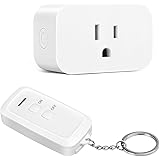
Navigating smart home device connectivity often presents unique challenges. When a Wi-Fi network change is needed, it can seem daunting. This challenge particularly applies to devices like the TP-Link Kasa smart plug. Fortunately, a factory reset is often not necessary. The video above demonstrates a straightforward method. This process allows Wi-Fi modification without erasing schedules or settings.
This article provides an in-depth look. It expands upon the video’s instructions. Specific technical details are explored. Expert insights are offered. A clear pathway for managing your TP-Link Kasa smart plug Wi-Fi is presented. This includes other Kasa devices, too. Understanding this procedure ensures seamless smart home operation.
Understanding Kasa Device Wi-Fi Management
A common issue arises. Users need to change the Wi-Fi network. This applies to their TP-Link Kasa devices. The expectation is often an in-app solution. However, this is not typically supported. The device’s hardware design dictates this. Direct network configuration within the application is generally not possible.
A soft reset approach is utilized instead. This method places the device into ‘setup mode’. It then becomes discoverable. A new network association can be established. Crucially, device parameters are preserved. These include intricate schedules and automation rules. This differentiation from a factory reset is vital. It saves significant configuration time.
Soft Reset vs. Factory Reset: A Key Distinction
The terms ‘soft reset’ and ‘factory reset’ are distinct. Their implications for smart devices vary greatly. A soft reset, as shown for the TP-Link Kasa smart plug, is a network-specific operation. It primarily affects the device’s Wi-Fi connection. Other stored data remains intact. This is akin to updating a contact’s phone number. The contact person is still recognized.
A factory reset is far more comprehensive. All user data is erased. The device reverts to its original, out-of-the-box state. This action is irreversible. All settings, schedules, and pairing information are lost. It is a complete system overhaul. This is comparable to receiving a brand new phone. All previous data is absent.
Initiating Setup Mode on Your Kasa Device
Placing a Kasa device into setup mode is the initial step. This prepares it for Wi-Fi network reassignment. A physical button press is required. The specific button location varies by device model. However, the action is consistent.
The button is typically pressed for a duration. Five seconds is a common timeframe. This action signals the device. It should enter its pairing state. A blinking status light confirms this transition. This light pattern indicates readiness. It is now awaiting new network credentials.
The 5-Second Reset: A Critical Indicator
The video highlights a five-second button press. This specific timing is critical. It differentiates a simple power cycle from a true soft reset. Holding for too long might initiate a factory reset. This would erase all settings. Careful attention must be paid.
The blinking light serves as a visual cue. It confirms successful entry into setup mode. This light pattern varies by device. However, it always signifies readiness. The device is now broadcasting its own temporary Wi-Fi. This allows for direct communication. Your smartphone will connect to this temporary network.
Reconnecting the Device via the Kasa App
Once in setup mode, the Kasa app is utilized. The device is added back to your ecosystem. This process is intuitive. It mirrors the initial setup procedure. The app guides you through each step.
The ‘Add Device’ function is accessed. The correct device type is selected. This ensures proper configuration. The app then prompts for network selection. Your new Wi-Fi credentials are provided. This re-establishes the device’s connection.
Bridging Your Phone to the Device’s Temporary Network
A crucial step involves your smartphone. It must connect to the Kasa device’s temporary Wi-Fi network. This network is broadcast locally by the device itself. It typically appears as ‘TP-Link_SmartPlug_XXXX’ or similar. This is not your home Wi-Fi network.
Your phone acts as an intermediary. It facilitates the new Wi-Fi configuration. This direct peer-to-peer connection is essential. It allows the Kasa app to send network details securely. The connection is temporary. It disbands once the device joins your main network.
Choosing Your New Wi-Fi Network
After the phone connects to the device, the Kasa app takes over. A list of available Wi-Fi networks is presented. Your desired home network is selected from this list. This is where your new SSID is chosen.
The corresponding Wi-Fi password is then entered. Accuracy is paramount. Incorrect credentials will prevent connection. The Kasa device attempts to join the chosen network. This establishes its permanent connectivity. A successful connection is usually confirmed within the app.
Avoiding Unintended Factory Resets
During the reconnection process, a prompt might appear. It asks about resetting the device. This option should be carefully considered. Selecting ‘Do Not Reset’ is critical. This preserves all existing schedules and settings. The goal is to change Wi-Fi, not erase device memory.
If ‘Reset’ is chosen inadvertently, a factory reset occurs. All configurations are lost. The device must then be set up from scratch. This includes re-creating all automation rules. Vigilance at this stage is highly recommended. It saves considerable effort.
Advanced Considerations for Kasa Wi-Fi Connectivity
While the basic steps are straightforward, advanced scenarios exist. Understanding these helps prevent future issues. The underlying network architecture plays a significant role. Smart home ecosystems demand robust Wi-Fi.
Network topology, such as mesh Wi-Fi systems, impacts Kasa devices. Seamless roaming might be an issue. Device placement is also key. Wi-Fi signal strength diminishes with distance. Obstructions further weaken signals. Optimal performance relies on a strong, stable connection.
Wi-Fi Standards and Band Compatibility
Most TP-Link Kasa smart plugs and devices operate on the 2.4 GHz Wi-Fi band. This band offers better range and penetration. However, it can be more susceptible to interference. Modern routers often support both 2.4 GHz and 5 GHz bands. Devices must be compatible with the selected band.
When changing Wi-Fi, ensure your new network supports 2.4 GHz. Or, ensure the Kasa device is guided to this specific band. Some routers use band steering. This feature automatically directs devices. It aims for the optimal band. Manual configuration might be needed sometimes. This ensures the TP-Link Kasa smart plug finds its preferred network.
Managing Multiple Kasa Devices After a Wi-Fi Change
A full house of Kasa devices presents a unique challenge. Each device must undergo this soft reset process. The Wi-Fi change is device-specific. It is not a global update. This can be tedious for large installations. However, settings are retained for each individual device. This mitigates some of the effort. Planning device updates in phases can be beneficial.
Smart Answers for Your Kasa Connectivity Questions
Why would I need to change the Wi-Fi on my Kasa smart plug?
You need to change your Kasa smart plug’s Wi-Fi if your home network name or password changes, or if you get a new Wi-Fi router. This ensures your smart device stays connected and functional.
Can I change my Kasa device’s Wi-Fi without losing all my settings?
Yes, you can use a method called a ‘soft reset’ to change the Wi-Fi network. This process allows you to update the network connection without erasing your device’s schedules or other settings.
How is a ‘soft reset’ different from a ‘factory reset’ for Kasa devices?
A soft reset only updates the Wi-Fi connection while keeping all your saved schedules and rules intact. A factory reset, however, erases all data and reverts the device to its original, out-of-the-box state.
What is the first step to connecting my Kasa device to a new Wi-Fi network?
The first step is to put your Kasa device into ‘setup mode’ by pressing its physical button, usually for about five seconds. A blinking light on the device will confirm it’s ready to connect to a new network.